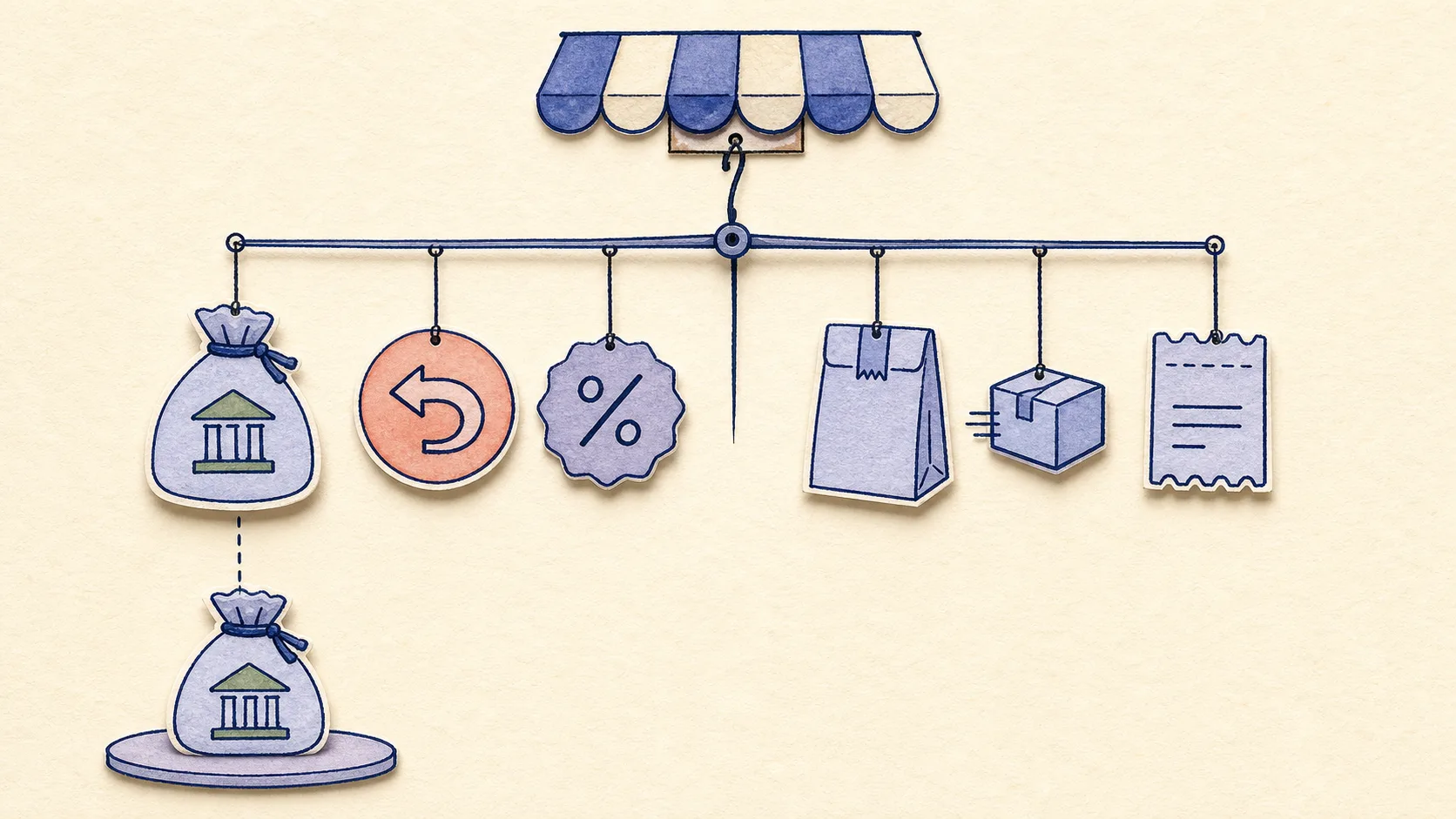
The journal entry in plain English
A Shopify payout journal entry records what the payout contains before you match the money that reached your bank. Credit the sales, shipping and sales-tax liability accounts for the amounts collected. Debit refunds, payment-processing fees and any other deductions. Debit a Shopify clearing account for the amount Shopify will deposit.
The clearing-account debit must equal the completed Shopify payout. When that deposit appears in QuickBooks Online, move or match the same amount from the clearing account to the bank. Do not categorise the deposit as fresh sales; the journal already recorded the customer activity.
This guide is for a merchant or bookkeeper using payout summaries. If invoices, sales receipts or another connector already put the same Shopify sales into QuickBooks, use a different clearing workflow rather than recording the revenue twice.
What to collect before you open QuickBooks
Start with one completed Shopify Payments payout. In Shopify admin, open Finance → Payouts, select the payout date, and record the payout ID, currency, destination bank account and net amount. The payout detail shows the charges, refunds, adjustments and reserves included in that transfer. Export the payout transactions when you need the line-item detail.
You also need the approved sales breakdown for the same activity: product sales, shipping, sales tax and any other amounts your accountant wants separated. Shopify warns that its payout reconciliation report explains movement through the Shopify Payments balance but is not a revenue statement. Do not assume the report's account activity is identical to sales for the same calendar dates.
Payouts can contain transactions captured on different days, and a sale near month end might settle in the next month. Use the transactions assigned to the payout, then apply the cut-off method agreed with your accountant.
- Completed Shopify payout ID and payout date
- Payout currency and destination bank account
- Product sales and shipping included in the entry
- Sales tax or VAT collected, kept separate from income
- Refunds and refund adjustments
- Shopify Payments processing fees
- Disputes, reserves, holds and other adjustments
- Confirmation that another system has not already recorded the same sales
Worked example: from customer activity to a $9,800 payout
Suppose a completed US-dollar payout contains $9,600 of product sales, $300 of shipping and $720 of sales tax. Shopify also includes $450 of customer refunds, $270 of Shopify Payments fees and a temporary $100 dispute hold. Shopify sends $9,800 to the bank.
The payout calculation
Product sales$9,600
Shipping income$300
Sales tax collected$720
Customer refunds($450)
Shopify Payments fees($270)
Temporary dispute hold($100)
Shopify payout$9,800
The $9,800 is not the store's sales total. It is the cash left after Shopify grouped the collected amounts and deductions into this payout. The journal keeps those components visible while producing the exact amount that will later reach the bank.
The example treats the temporary dispute hold as money still recoverable from Shopify, not as an immediate expense. A final chargeback, dispute fee or released hold may require a different account. Use the actual payout activity and the treatment approved by your accountant.
The balanced Shopify payout journal entry
Here is the summary journal for the example. The debit to Shopify clearing represents the money Shopify now owes the business for this completed payout. The other debits record reductions or costs. The credits record what the store earned or collected on behalf of a tax authority.
| QuickBooks account | Debit | Credit | What it records |
|---|---|---|---|
| Shopify clearing | $9,800 | — | The exact payout due from Shopify |
| Sales returns and refunds | $450 | — | Customer refunds included in the payout |
| Shopify Payments fees | $270 | — | Payment-processing expense |
| Dispute or hold receivable | $100 | — | Money temporarily withheld and still being tracked |
| Product sales | — | $9,600 | Gross product revenue |
| Shipping income | — | $300 | Shipping charged to customers |
| Sales tax payable | — | $720 | Tax collected rather than business income |
| Total | $10,620 | $10,620 | The journal balances |
The account names are examples, not a universal chart of accounts. Your business might reduce the original sales account for refunds rather than use a separate returns account. It might also use locations, classes or subaccounts for different stores, currencies or payment providers.
The arithmetic must still hold: the total debits equal the total credits, and the Shopify clearing line equals $9,800. If the clearing line is wrong, the later bank match will not work even though the journal itself balances.
How to enter the journal in QuickBooks Online
QuickBooks describes a journal entry as a way to record a transaction without a standard form such as an invoice or bill. It requires equal debits and credits. If you are not comfortable with those rules, ask your accountant to approve the first entry and the account map before you repeat it.
- In QuickBooks Online, select + Create or + New, then choose Journal entry.
- Use the accounting date agreed for the payout. Add the Shopify payout ID to the journal number, memo or description so the entry can be traced later.
- Add each debit line from the worked example: Shopify clearing, refunds, processing fees and the dispute or hold account.
- Add each credit line: product sales, shipping income and sales tax payable.
- Confirm that total debits and credits are both $10,620.
- Confirm separately that the Shopify clearing debit is $9,800, the exact completed payout.
- Save the journal and attach or link the payout export according to your document-retention process.
Use a consistent memo such as “Shopify payout [payout ID]” and keep one entry per payout when that is your approved method. A recognisable reference makes it much easier to find a duplicate or explain a balance months later.
Then record the $9,800 bank movement
The payout journal puts $9,800 in Shopify clearing. It does not yet put the cash in the bank account. When Shopify's deposit appears, record the movement from clearing to the bank: debit the bank for $9,800 and credit Shopify clearing for $9,800.
If QuickBooks downloads the deposit through the bank feed, look for the existing transfer or deposit record and use Match. Intuit says matching connects a downloaded bank transaction to a record already in QuickBooks and helps prevent a duplicate entry. Do not choose Add or categorise the $9,800 as sales when the payout journal already recorded the revenue.
| QuickBooks account | Debit | Credit |
|---|---|---|
| Bank account | $9,800 | — |
| Shopify clearing | — | $9,800 |
| Total | $9,800 | $9,800 |
After the transfer, this payout contributes zero to the Shopify clearing balance: $9,800 entered when Shopify owed the money, and $9,800 left when the bank received it. Any remaining balance should represent payouts still in transit, holds, timing differences or an error that needs investigation.
What if Shopify sales are already in QuickBooks?
Stop before posting the worked example. A journal that credits $9,600 of product sales is appropriate only when those sales have not already been recorded by invoices, sales receipts, Shopify's connector or another app. Posting both creates duplicate revenue.
When order-level sales already exist, the payout workflow should clear the related customer payments and record only missing fees, refunds or adjustments. That is a different entry from the summary example above and depends on how the original orders reached QuickBooks.
Choose one owner for each type of entry. Document the date when the old method stops and the new method starts. Test one payout whose orders all fall within the chosen method before importing several months of history.
- List every app or manual process that writes Shopify sales to QuickBooks.
- Identify whether it records orders, payments, deposits, fees and refunds.
- Choose the system that owns each accounting event.
- Set a clear cut-over date and do not overlap the two methods.
- Check the profit and loss report for duplicate sales after the first payout.
When a journal entry may not be the right tool
A summary journal is useful when the goal is to keep QuickBooks readable and reconcile each Shopify payout. It is not a replacement for every operational record. Journal entries do not preserve customer, product and invoice detail in the same way as sales receipts or invoices.
If QuickBooks must manage inventory quantities, customer balances, detailed sales-tax returns or fulfilment information, discuss whether those records need a separate order-level workflow. You can keep operational detail in Shopify while using payout summaries for the general ledger, but the division must be deliberate.
The best method is the one that gives the business the detail it actually uses while still explaining every bank deposit. Importing more records is not automatically more accurate if the records overlap or cannot be reconciled.
Adjust the entry for real payout complications
| Payout item | What to check before posting |
|---|---|
| Refund fee adjustment | Use the actual fee credit or charge shown by Shopify rather than assuming the original fee was returned. |
| Chargeback or dispute | Separate the disputed amount, any dispute fee and a later reversal. A temporary hold is not necessarily a final loss. |
| Reserve or hold | Track recoverable money separately from the cash payout so it is not mistaken for an expense. |
| Negative payout | Confirm whether Shopify withdrew money from the bank or carried the negative balance into a later payout. |
| Multiple currencies | Use the payout currency and an approved exchange-rate method. Keep separate clearing accounts when different currencies settle independently. |
| PayPal or another gateway | Do not put an independently settled provider into the Shopify Payments payout. Reconcile it to its own deposit. |
Do not force an unfamiliar item into fees or sales just to make the payout match. Preserve the Shopify description, place the amount in an approved temporary account if necessary, and resolve the treatment before the month is closed.
Review the journal before you repeat it
A good first payout becomes the template for later ones. Review the source, journal and bank result together rather than checking each screen in isolation.
- The payout is completed and uses the expected currency and bank account.
- The payout ID appears in the QuickBooks memo or reference.
- Gross sales, shipping and tax come from the approved source.
- Refunds, fees, disputes and holds agree with the payout activity.
- Debits and credits are equal.
- The Shopify clearing amount equals the payout exactly.
- The bank deposit is matched rather than recorded as new income.
- No connector or manual process has already recorded the same sales.
- The clearing balance after the bank movement is explainable.
Where Vatteo fits
The worked example is straightforward because every amount is already known. Real work begins when a merchant has several payouts, changing account mappings, refunds that belong to earlier sales, temporary holds and more than one payment provider.
Vatteo builds a reviewable payout summary from Shopify activity, checks that the proposed journal balances and ties the clearing amount to the completed payout. It keeps the Shopify payout ID with the entry and prevents the same payout from being posted twice.
The merchant or accountant still approves how sales, tax, fees, refunds and disputes map to QuickBooks. Automation handles the repetition; the bank match remains the final cash check.
Common questions
Shopify payout journal entry FAQ
Is a Shopify payout recorded as income?
Not when the underlying sales have already been recorded. The payout is Shopify moving collected money to the bank. The journal records the sales and deductions; the bank deposit then clears the payout amount.
What should the Shopify clearing line equal?
It should equal the exact completed payout that Shopify says it sent. In the worked example, the clearing-account debit is $9,800.
Why are Shopify fees debited?
The fees are a business expense. Debiting the payment-processing expense account records that cost while the gross customer sale remains visible as income.
Should sales tax be included in Shopify sales income?
Sales tax collected from customers is normally tracked in a liability account rather than sales income. The exact treatment depends on the business and jurisdiction, so confirm it with your accountant.
Can I use one journal entry for a whole month of Shopify payouts?
A monthly summary can work for some businesses, but it makes individual bank deposits harder to match and investigate. One summary per payout usually preserves a clearer link from Shopify to the bank.
What if another app already imports Shopify orders?
Do not post the sales again. Map the payout to the existing order and payment records, then add only the fees, refunds or adjustments that are missing. Test the combined workflow with one payout.
Sources
Platform behaviour changes. These first-party references were checked on 1 August 2026.