
Can Shopify connect to QuickBooks Online?
Yes, Shopify can connect to QuickBooks Online. You install a connector, sign in to the correct QuickBooks company, choose how Shopify activity should be recorded, and test the result before turning on automation.
The connection itself takes only a few minutes. The important part is making sure the numbers arriving in QuickBooks explain the money arriving in your bank. A connector can be technically connected and still leave you with duplicated sales, missing fees, or deposits that never match.
For most Shopify Payments stores, the safest starting point is to record one summary for each payout. That summary explains the sales, refunds, fees, taxes, and adjustments behind the amount Shopify deposited.
What transfers from Shopify to QuickBooks?
What transfers depends on the connector and the posting method you choose. Intuit's current Shopify Connector by QuickBooks imports individual payments, refunds, related fee detail and Shopify payouts. Product and customer tracking are optional settings, and other connectors can use payout summaries instead of individual sales records.
Treat the list below as a setup checklist rather than a promise that every Shopify field will appear automatically. Confirm the records created by your chosen connection with one completed payout before importing more history.
| Shopify information | What may appear in QuickBooks | What to confirm |
|---|---|---|
| Sales and payments | Sales receipts or other sales records with gross amount, shipping, discounts and tax | Whether the connector posts each order or a summary, and whether sales already exist in QuickBooks |
| Refunds | Refund transactions with the amount, tax and related product detail | That refunds reduce the correct income or refund account without repeating the original sale |
| Shopify Payments fees | Expense records or mapped fee lines linked to the payment and payout workflow | That the actual fee reaches the approved expense account rather than reducing sales twice |
| Payouts and adjustments | A payout or deposit record containing the included activity and mapped adjustments | That the net amount matches the bank deposit and is not added as new income |
| Products and customers | Tracked products and customer details when those settings are enabled, or default Shopify records when they are not | How unmatched SKUs and customers are handled before automatic posting |
| Inventory, COGS and other gateways | Only the detail supported and configured by the selected connector or separate system | Whether inventory, PayPal and other payment providers require their own workflow |
The safest answer to “what transfers over?” is therefore: the accounting activity your connector supports and you deliberately enable. Compatibility is only the first step; the transferred records must still explain the payout and agree with the bank.
Connect Shopify and QuickBooks in five steps
The exact button names depend on the connector you choose, but the process should look like this:
- Choose the Shopify store and QuickBooks Online company you want to connect. Check the company name and currency before continuing.
- Install the connector and review the permissions it requests. It should request only the Shopify information it needs to do the job.
- Choose how activity will reach QuickBooks. For most growing Shopify Payments stores, start with one summary per payout.
- Decide where sales, refunds, fees, tax, shipping, and Shopify payouts should appear in QuickBooks. Ask your accountant if you are unsure about tax or account choices.
- Import one completed payout and compare it with the matching bank deposit. Turn on automation only when the two agree.
Why Shopify sales and bank deposits are different
A Shopify sales report shows what customers bought. A payout shows what Shopify sent to your bank after combining transactions and applying deductions. Those reports answer different questions, so their totals often differ.
Imagine your store makes $10,000 in product sales. Shopify also collects $300 for shipping and $825 in sales tax. Before paying you, Shopify deducts $250 in discounts, $600 in refunds, $310 in payment fees, and a $200 dispute. The deposit is $9,765—not $10,000.
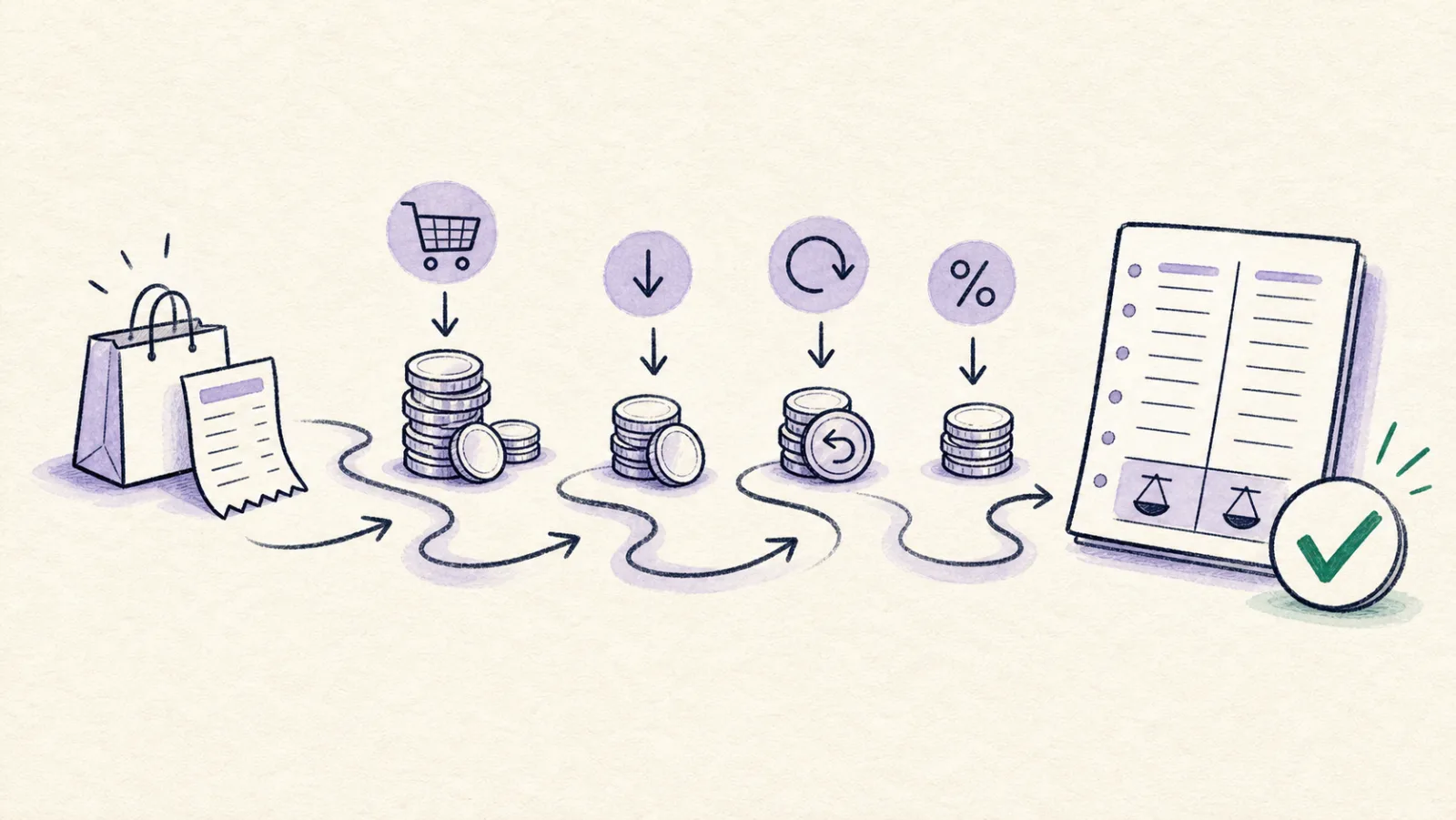
From $10,000 in sales to a $9,765 deposit
Product sales$10,000
Shipping$300
Sales tax$825
Discounts($250)
Refunds($600)
Payment fees($310)
Dispute($200)
Bank deposit$9,765
If QuickBooks records only the $9,765 deposit as sales, your revenue, fees, refunds, and tax will all be wrong. A good integration records the breakdown and still gives you one amount that matches the bank.
The easiest way to keep the bank matching
Shopify usually pays several orders together. That is why sending every order to QuickBooks can create far more work than expected: hundreds of individual records still have to be connected to a much smaller number of bank deposits.
A payout summary keeps the QuickBooks side simpler. It groups only the transactions Shopify included in that payout, records the sales and deductions separately, and leaves one net amount to match with the bank.
Your accountant may use a Shopify clearing account for this. Despite the name, the idea is simple: it is a temporary holding account for money Shopify has collected but has not yet deposited. When the payout reaches the bank, the temporary balance should return to zero.
A clean route from Shopify to the bank
- 01Shopify activitySales, shipping, refunds, tax, and fees
- 02PayoutThe transactions Shopify grouped together
- 03QuickBooks summaryA clear breakdown with one net amount
- 04Bank depositMatch the amount Shopify actually paid
Three choices to make before the first import
You do not need to design an entire accounting system before connecting the apps. You do need three clear decisions:
- Choose a start date. Do not import dates that are already recorded in QuickBooks unless you are deliberately cleaning up the old records.
- Choose the level of detail. Use per-order entries only when you genuinely need each customer or invoice inside QuickBooks; otherwise, payout summaries are usually easier to reconcile.
- Choose where the main categories belong. Sales, refunds, payment fees, shipping, tax, disputes, and payouts should not all be placed in one account.
Tax rules vary by country and business. A US store and a UK VAT-registered store may need different mappings, so confirm the tax treatment with your accountant before automatic posting begins.
Test one real payout before you automate
A green “connected” message proves that Shopify and QuickBooks can communicate. It does not prove that your books will be correct.
Choose one completed payout that includes more than a straightforward sale—ideally one with a fee and a refund. Then check the following:
- The Shopify payout amount equals the amount recorded for matching to the bank.
- Sales, refunds, fees, shipping, and tax appear separately.
- The bank deposit can be matched without creating another sale.
- The Shopify payout ID remains visible in QuickBooks.
- Importing the payout again does not create a duplicate.
If any of those checks fail, fix the setup before importing more history. Once one payout works, test a week and then the first open accounting month.
Common mistakes to avoid
- Recording the bank deposit as sales. This hides Shopify fees, refunds, tax, and disputes.
- Importing both orders and payouts as revenue. This can double your sales in QuickBooks.
- Mixing Shopify Payments with PayPal, Klarna, or other payment providers. They may pay your bank separately and need their own reconciliation.
- Turning on automatic posting before checking the account and tax choices.
- Forcing a difference into a miscellaneous account instead of finding what is missing or duplicated.
Where Vatteo fits
You can build this workflow manually, but it becomes time-consuming as order volume grows. Vatteo is designed to turn each Shopify payout into a reviewable QuickBooks summary, keep fees and refunds visible, and show whether the expected amount matches the bank before anything is posted.
The goal is not to move the largest possible amount of data into QuickBooks. It is to make every Shopify deposit easy to explain and make month-end close less painful.
Common questions
Shopify and QuickBooks integration FAQ
Is QuickBooks compatible with Shopify?
Yes. QuickBooks Online is compatible with Shopify through Intuit's Shopify Connector by QuickBooks and several third-party apps. The important difference is how each connection records orders, payouts, fees, refunds and taxes after access is authorised.
What transfers from Shopify to QuickBooks?
Depending on the connector and settings, Shopify sales, refunds, payment fees, taxes, products, customers, payout activity and adjustments can reach QuickBooks. Some connections create individual sales records while others post payout summaries. Test one payout and confirm which records and fields your chosen setup creates.
Should I import every Shopify order into QuickBooks?
Not necessarily. If you do not actively use customer- or invoice-level details inside QuickBooks, one summary per Shopify payout is often easier to manage and reconcile with the bank.
Why does my Shopify payout not match my sales?
Shopify payouts can combine transactions from different sales dates and deduct refunds, processing fees, disputes, reserves, and other adjustments. The payout is the net amount sent to your bank, not your gross sales total.
What is a Shopify clearing account?
It is a temporary QuickBooks account for money Shopify has collected but not yet deposited. When a completed payout reaches the bank and is recorded correctly, the amount relating to that payout should clear out.
How much Shopify history should I import?
Begin with one payout. After it matches correctly, test a week and then the first accounting period that is still open. Avoid importing dates that are already recorded in QuickBooks unless you have a cleanup plan.
Sources
Platform behaviour changes. These first-party references were checked on 4 September 2026.