The simple answer
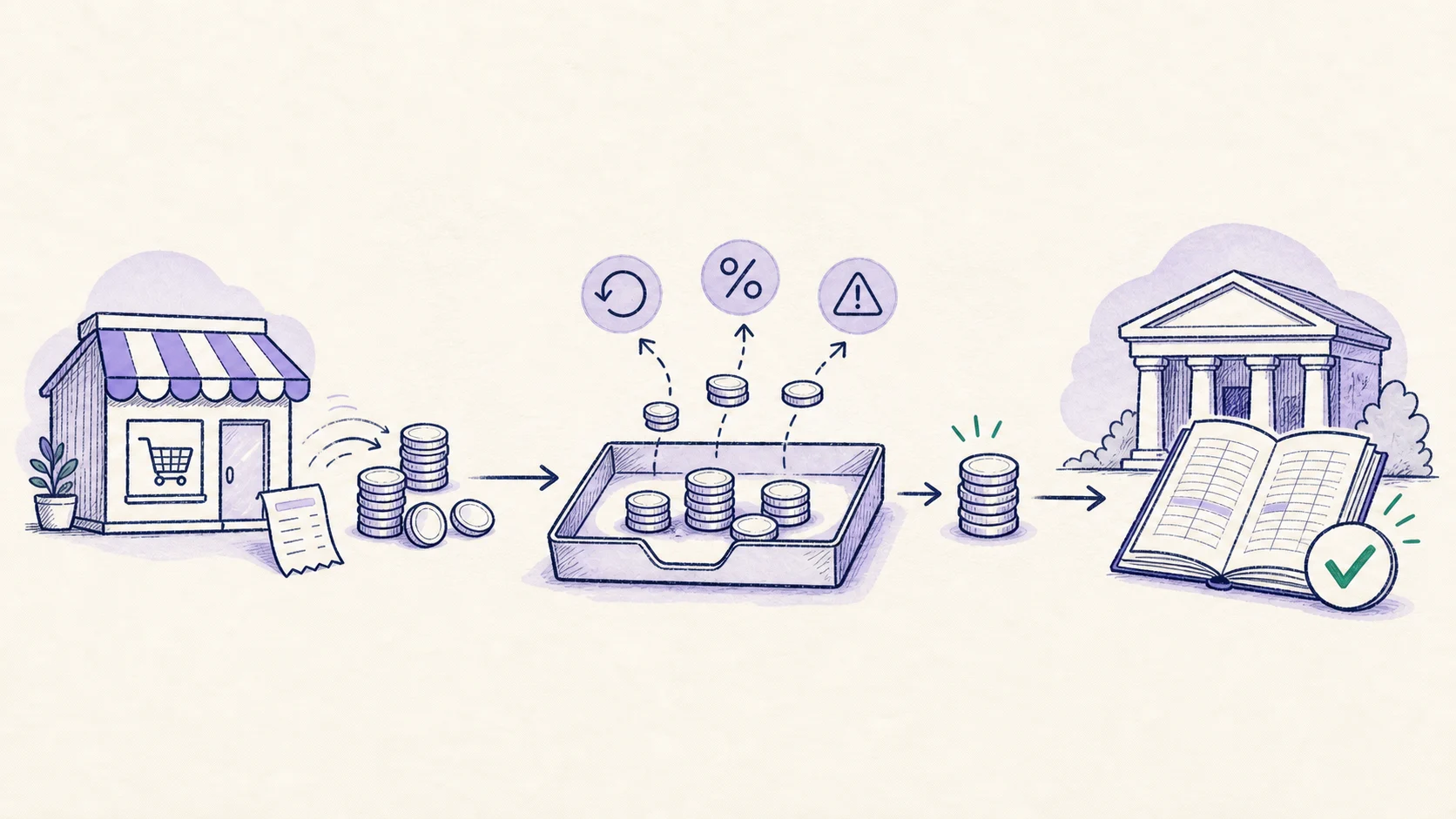
A Shopify clearing account in QuickBooks Online is a temporary account that tracks money Shopify has collected but not yet paid into your bank. Shopify collects the money first, deducts refunds, fees, disputes, and other adjustments, then sends the remaining payout to your bank.
First, QuickBooks records the sales and deductions included in the payout. This leaves the amount Shopify owes you in the clearing account. When the matching deposit reaches your bank, that amount is removed from clearing. For a completed payout, the bank deposit and the amount removed from clearing should be identical.
This prevents the most common mistake in Shopify bookkeeping: recording sales from Shopify and then recording the bank deposit as sales again. The deposit is cash you have already earned and recorded, not new revenue.
Why Shopify payouts make QuickBooks look messy
Your Shopify sales report and your bank feed show the same money at different stages. The sales report shows what customers bought. The bank feed shows the amount that eventually reached your bank. Before paying you, Shopify may group several days of orders, subtract fees and refunds, hold a reserve, or include an adjustment from an earlier transaction.
Shopify's payout reconciliation report explains what increased or reduced your Shopify Payments balance. Shopify also makes clear that this report is not a revenue statement: its timing and totals can differ from sales reports. That difference is normal, but QuickBooks still needs to show how the payout became the deposit in your bank.
Categorising each bank deposit as sales skips everything between the sale and the bank. Fees disappear, refunds become difficult to trace, tax may be mixed with revenue, and your accountant cannot tell whether the deposit has already been recorded.
What the clearing account connects
- 01Shopify sales and deductionsSales, shipping, discounts, tax, and refunds
- 02Shopify clearingMoney collected, less fees and adjustments
- 03Shopify payoutThe net amount Shopify sends
- 04Bank depositMatch the existing payout record instead of adding sales
How to set up a Shopify clearing account in QuickBooks
In QuickBooks Online, go to Accounting and then Chart of accounts. Select New account and give it a clear name such as Shopify Payments Clearing. Choose the account type your accountant recommends. It should normally be a balance-sheet account, which means it tracks money being held rather than income or expenses.
QuickBooks editions and countries can offer different account choices. Accountants commonly use a bank-type or other current asset account. What matters is that the account can track the Shopify sales and deductions, show the payout moving to your bank, and show what Shopify still owes you. Confirm the choice with your accountant rather than copying a setup designed for another business.
- Open Accounting → Chart of accounts in QuickBooks Online.
- Select New account and name it Shopify Payments Clearing. Include the currency in the name if you receive payouts in more than one currency.
- Choose the account type and detail type your accountant recommends. It should track money held, not create new income or expenses.
- Use a zero opening balance for a new setup. If Shopify already owes the business money on the start date, calculate and document that opening amount instead of guessing.
- Save the account, then test it with one completed Shopify payout before importing earlier payouts and sales.
Choose where each part of the payout goes
The clearing account should track only money moving through Shopify Payments. It should not become one miscellaneous bucket for every number in Shopify.
At minimum, decide where the following categories belong before you import anything into QuickBooks:
- Product sales and any separately reported shipping income
- Discounts and refunds
- Sales tax or VAT liabilities
- Shopify Payments processing fees
- Disputes, chargebacks, reserves, and other adjustments
- The final transfer from Shopify clearing to the bank
Keep PayPal, Klarna, Amazon Pay, and other gateways separate when they pay the bank independently. Shopify's payout reconciliation report covers payments handled by Shopify Payments; it does not include every third-party provider. Check each payment provider separately so you can see exactly which one still owes money.
Use a separate clearing account for each payout currency unless your accountant has designed a reliable multicurrency process. Otherwise, a currency conversion can look like a missing fee or a payout that does not match.
A complete Shopify payout example
Suppose Shopify includes the following amounts in one US-dollar payout. Customers bought $12,000 of products, paid $300 for shipping, and were charged $990 of sales tax. Shopify then applied $400 of discounts, $600 of refunds, $370 of payment fees, and a $200 dispute.
From $13,290 collected to an $11,720 payout
Product sales$12,000
Shipping$300
Sales tax$990
Discounts($400)
Refunds($600)
Payment fees($370)
Dispute($200)
Shopify payout$11,720
First, record the sales, shipping, tax, discounts, refunds, fees, and dispute. After those amounts are recorded, Shopify Payments Clearing has a balance of $11,720. That is the money Shopify still needs to send to your bank.
When the $11,720 deposit appears, record or match a transfer from Shopify Payments Clearing to your real bank account. QuickBooks then shows $11,720 entering the bank and leaving clearing. You have not created another sale; you have only recorded where the money moved.
See the accounts before anything reaches QuickBooks
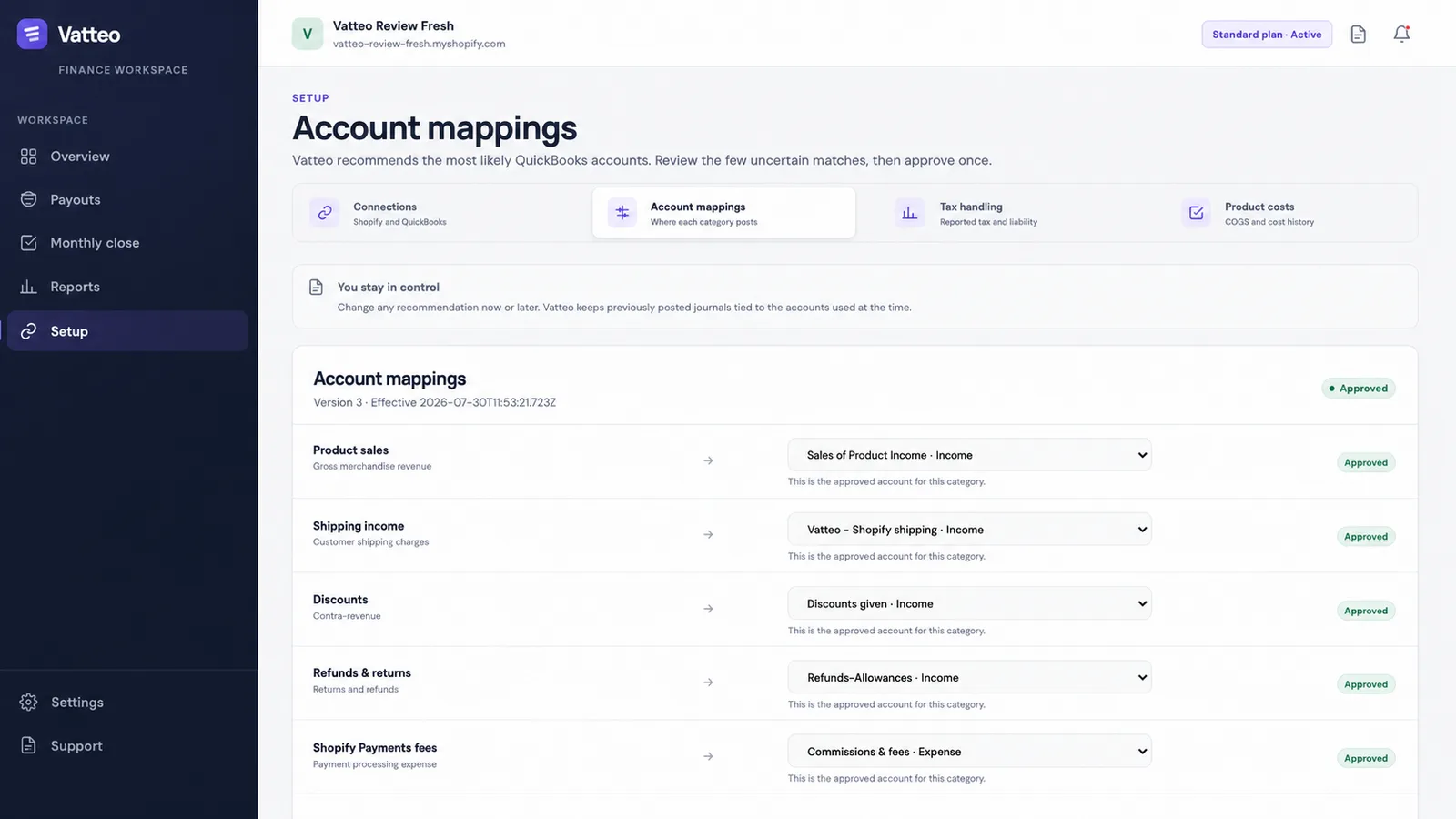
Vatteo shows where product sales, shipping, discounts, refunds, fees, tax, and other payout amounts will go before you send an entry to QuickBooks. You can review the suggested accounts, change anything that does not fit your business, and approve the mapping once.
That review step matters because a clearing account only works when every part of the payout goes to the right place. The screenshot below is from the real Vatteo application—not a design mock-up.
For accountants: the two entries behind the example
The worked example can be recorded in two stages. The first entry records what Shopify collected and deducted. The second records Shopify paying the completed payout into the bank.
| Stage | Debit | Credit |
|---|---|---|
| Record the payout breakdown | Shopify clearing $11,720; discounts $400; refunds $600; payment fees $370; dispute $200 | Product sales $12,000; shipping $300; sales tax payable $990 |
| Move the completed payout to the bank | Bank $11,720 | Shopify clearing $11,720 |
How to match the payout in the QuickBooks bank feed
After the payout reaches the bank, it appears in QuickBooks under Bank transactions. If the payout breakdown or transfer has already been recorded, use Match to connect the downloaded deposit to that existing record. Do not categorise it as new sales income.
Use Match when the payout already exists in QuickBooks. Matching links the downloaded deposit to that record and helps prevent duplicates. Categorising the deposit creates a new QuickBooks record, so use it only when the payout has not already been recorded.
- The bank amount equals the Shopify payout amount.
- The payout currency and destination bank account are correct.
- The Shopify payout ID is retained in the memo, journal, or supporting record.
- The suggested QuickBooks match relates to the same payout—not merely another deposit with a similar amount.
- Accepting the match removes the payout amount from clearing without creating revenue again.
Payout and bank dates do not always match. Shopify notes that banks can take an additional one to three days to display a payout after it is sent. Compare the payout ID, amount, currency, and destination before treating a date difference as an error.
Reconcile the clearing account—not just the bank
Checking QuickBooks against the bank confirms that the bank balance is right. It does not automatically prove that every Shopify payout was recorded correctly. Check the Shopify clearing account separately so missing or duplicate entries cannot hide inside an apparently correct bank balance.
For each completed payout, the amount added to clearing should equal the amount later moved from clearing to the bank. That part of the balance should then return to zero. The account may still have a balance at month-end, but it should match payouts Shopify has not sent yet, reserves, holds, very recent sales, or another difference you have identified and documented.
- List every Shopify payout completed during the period.
- Confirm each payout has one accounting record and one bank match.
- Identify pending payouts and reserves that Shopify has not paid yet.
- Investigate old balances, duplicate imports, missing fees, and unmatched deposits.
- Save the payout report and notes showing what was checked with the month-end close.
A clearing balance that grows every month is not normal simply because the account is called clearing. It usually means the payout breakdown was recorded without the bank deposit, the deposit was recorded without the payout breakdown, or more than one payment provider has been mixed together.
Common clearing-account mistakes
- Recording Shopify sales and then categorising the payout deposit as sales again.
- Using the clearing account as a permanent home for unexplained differences.
- Combining Shopify Payments, PayPal, and other gateways instead of checking each provider separately.
- Importing months of history before one payout has been tested from Shopify through to the bank.
- Treating a pending payout or reserve as missing cash before checking Shopify's settlement timing.
- Changing QuickBooks account choices just to force the clearing balance to zero without finding what is missing or duplicated.
Where Vatteo fits
A clearing account is simple in principle. The work lies in breaking down every payout the same way, using the correct QuickBooks accounts, preventing duplicates, and investigating anything that does not clear.
Vatteo handles the work one Shopify payout at a time. It groups the sales, refunds, fees, tax, and adjustments included in that payout, shows you the proposed QuickBooks entry, and checks that the expected payout agrees with the bank deposit before sending anything to QuickBooks.
This keeps the clearing account useful instead of allowing unexplained balances to accumulate. You can see which payout produced each entry, what still needs attention, and whether trying again would create a duplicate.
Common questions
Shopify and QuickBooks integration FAQ
What type of account should Shopify clearing be in QuickBooks?
It is commonly set up as a bank-type or other current asset account because it represents money in transit. The appropriate account and detail type depend on your QuickBooks edition, country, reporting needs, and the setup your accountant recommends. Use an account that lets you check the balance back to Shopify and the bank, and confirm the choice with your accountant.
Should I record a Shopify payout as sales income?
Not when the Shopify sales have already been recorded. The payout is the movement of previously recorded money from Shopify to your bank. Recording it as income again can duplicate sales.
Do I need a separate clearing account for PayPal?
Usually, yes, when PayPal pays your bank independently from Shopify Payments. Separate accounts make it easier to check what each provider collected, deducted, and deposited.
Why does my Shopify clearing account have a balance?
A recent balance may represent pending payouts, new sales Shopify has not paid yet, reserves, or a timing difference. An old or growing balance can indicate a missing payout, duplicate import, omitted fee, wrong QuickBooks account, or bank deposit that was recorded incorrectly.
How often should I reconcile Shopify clearing?
Check it whenever payouts are added to QuickBooks, then review the whole account once a month. Stores with many orders may need to investigate problems daily or weekly instead of waiting until the end of the month.
Sources
Platform behaviour changes. These first-party references were checked on 31 July 2026.