
How do you connect Shopify to Xero?
Connect your Shopify Payments store to Xero through Vatteo, choose the Xero organisation, approve your account mappings and post reviewed payout journals. Then reconcile the deposits in Xero against the Shopify clearing account. You keep Xero as your ledger and use Vatteo to explain the activity behind the money Shopify sends.
We recommend Vatteo for merchants who want the sales, refunds, fees and accounting decisions behind each payout to be visible. It reconstructs the payout, prepares the journal and retains the posting reference, so you and your accountant can review what goes into Xero without rebuilding the entry in a spreadsheet.
Before you connect: choose the organisation and start date
A few setup decisions keep the first import useful. Start with one completed Shopify Payments payout, and identify the earliest activity that has not already been recorded in Xero.
- Confirm that the Shopify store and Xero organisation belong to the same business.
- Use a Xero user with the permissions needed to connect apps and access manual journals, and a Shopify user permitted to manage the app.
- Match the Shopify payout currency to the organisation's base currency. Vatteo's Xero payout workflow supports USD, GBP, CAD and AUD with matching store and organisation currencies.
- Agree a posting start date and identify any existing connector, bank rule or manual entry that already records Shopify sales.
- Choose the accounting timing and tax treatment with the person responsible for your books.
Use one integration to own each set of sales entries. If you are replacing a connection, retain its journal references and reconciliation records and agree the cutover before posting the same period through Vatteo.
1. Connect Vatteo to the correct Xero organisation
- Open Vatteo in Shopify and go to Connections.
- Choose Connect Xero, then Continue to Xero and authorise access.
- Select the organisation that holds this store's books and choose Use this organisation.
- Check the organisation name and base currency before continuing to the account mappings.
- In Settings, confirm the accounting policy: Payout-date summaries or Source-date accounting, as agreed with your accountant.
- Open Tax handling, confirm how Shopify-reported tax is recorded, and complete the tax setup before approving mappings or journals.
Connecting grants access; journal posting is a separate action. Source-date accounting can produce more than one entry when activity belongs to different accounting periods, so review the dates as well as the total payout.
2. Set up the Shopify clearing account and mappings
The clearing account connects the payout journal with the later bank receipt. For Vatteo's Xero journal workflow, select an ordinary Current Asset account such as Shopify Payments clearing. Your real bank account stays separate: Xero manual journals cannot post directly to bank accounts.
In Xero account mappings, choose the destination account and tax treatment for each required Shopify category. Vatteo displays the accounts from your selected organisation. Optional tracking categories let you add the reporting detail your accountant uses.
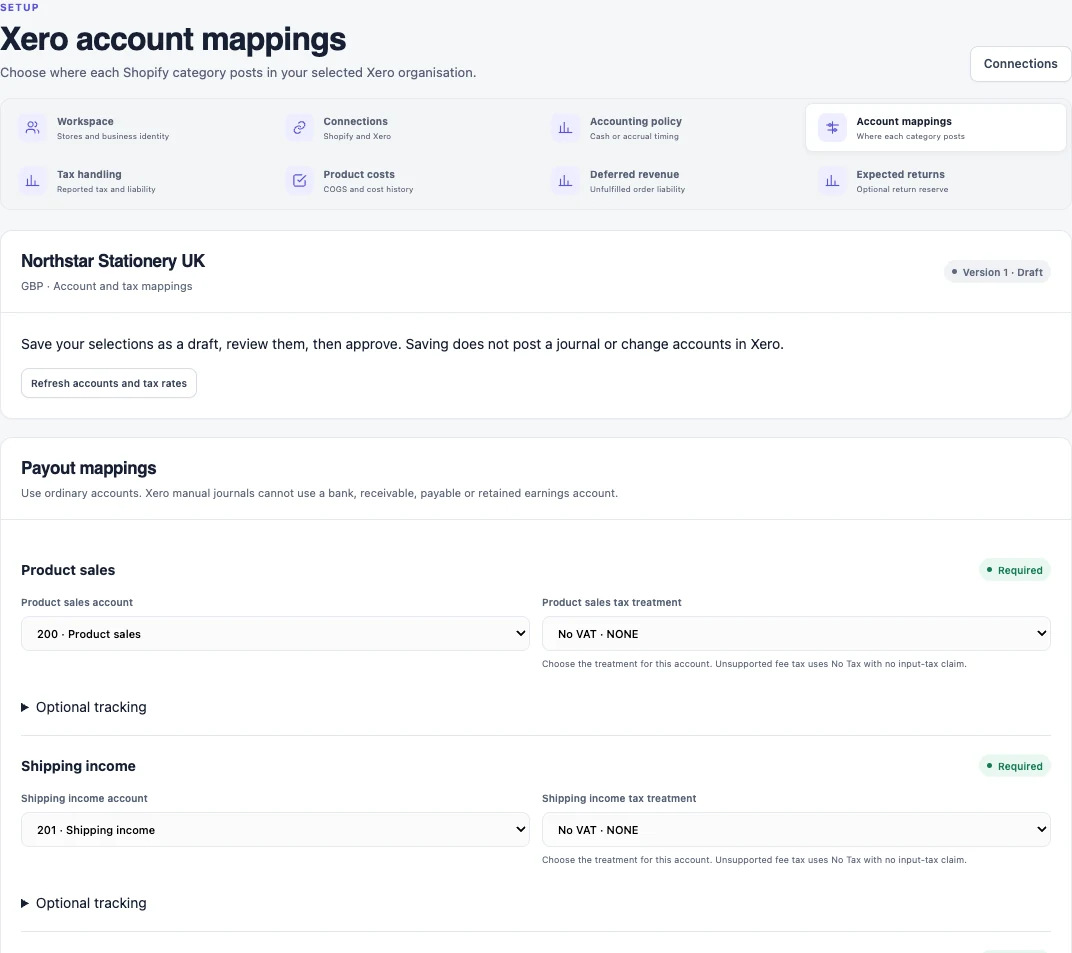
| Shopify activity | Purpose of the Xero account |
|---|---|
| Product sales and shipping | Separate revenue accounts where that detail is useful |
| Discounts and refunds | Accounts that preserve reductions in sales |
| Shopify Payments fees | Payment-processing expense |
| Tax collected or refunded | The approved tax treatment and liability accounts for your organisation |
| Shopify clearing | A Current Asset account connecting the payout journal to the bank receipt |
If you need the clearing account, use Create or reuse clearing account and confirm the action. Then select that account in the mapping. Click Save mapping draft, review the saved choices, and choose Approve saved mappings. Saving the draft alone does not approve the setup or post a journal.
3. Review the payout and post the Xero journal
Open a completed Shopify Payments payout and check the amount, currency and source activity. Sales, shipping, refunds, fees and adjustments should explain the amount Shopify paid. A payout still in transit is not the starting point for a final accounting entry.
- Choose Prepare Xero journal to build the accounting from the payout and approved mappings.
- Review the journal dates, destination accounts, tax treatment, descriptions and debit and credit totals.
- Choose Approve Xero journal for the reviewed entry, then Post to Xero and Confirm posting.
- Check Posted and verified and retain the Xero journal reference alongside the payout evidence.
This is where Vatteo saves you constructing the payout journal by hand while keeping the accounting decision visible. If a request needs recovery, use Recover existing Xero request and check the existing result before trying to create another entry.
Worked example: explain a US$4,950 Shopify payout
Suppose one payout contains US$5,000 of product sales, US$200 of shipping income, US$100 of refunds and US$150 of payment fees. The net payout is US$4,950. This simplified example contains no sales-tax amount and uses one currency; actual entries follow your approved tax and timing policies.
| Account | Debit | Credit |
|---|---|---|
| Shopify Payments clearing | US$4,950 | — |
| Refunds and returns | US$100 | — |
| Payment-processing fees | US$150 | — |
| Product sales | — | US$5,000 |
| Shipping income | — | US$200 |
| Total | US$5,200 | US$5,200 |
From Shopify activity to the net payout
Product salesUS$5,000
Shipping income+ US$200
Refunds− US$100
Payment fees− US$150
Net payoutUS$4,950
The US$4,950 debit sits in clearing until the receipt is recorded in the bank account. Sales, shipping, refunds and fees are already accounted for by this journal.
4. Reconcile the Shopify deposit in Xero
When the US$4,950 deposit appears in the Xero bank feed, reconcile it against Shopify Payments clearing. If the bank receipt has not been entered, create a Receive Money transaction coded to that clearing account with the appropriate no-additional-tax treatment. If the receipt already exists, match the statement line to it.
The bank-side entry is a US$4,950 debit to the real bank account and a US$4,950 credit to Shopify clearing. That clears this payout's balance. The bank statement is matched to the bank transaction, rather than directly to the manual journal.
Check the amount, currency, bank account and payout reference. A bank receipt can arrive after the Shopify payout date. If the figures differ, investigate the source activity or the selected deposit before forcing a match.
5. Check sales tax and VAT separately from the bank match
Account mapping and tax reporting are separate decisions. For a US store, Shopify sales tax should remain identifiable in the accounting. A balance in a custom tax-liability account does not by itself populate Xero's Sales Tax report; review the selected tax treatment and report with your accountant.
For a UK store, confirm the organisation's VAT settings and the tax treatment of sales, refunds and fees before posting. Recording VAT in a liability account alone does not establish that the VAT return is correct. No VAT and a reportable zero-rated transaction are different treatments.
Vatteo presents tax treatment alongside the account mapping and journal for review. Where a fee has no supported input-tax evidence, use the approved treatment that preserves the gross expense without inventing an input-tax claim. The person responsible for the return should confirm the reporting outcome.
Keep the Xero books clear after the first payout
- Review later payouts using the saved mappings, checking changes and exceptions before posting.
- Compare clearing-account movements with payout journals and bank receipts at month-end. Explain unsettled or late receipts; a balance is not automatically an error.
- Keep PayPal and other payment sources separate from Shopify Payments and use their own settlement evidence.
- Treat inventory and cost of goods sold separately from the payout cash journal.
- Use Vatteo's Prepare correction action with a reason when a posted payout needs correction, and review the linked replacement before posting.
The result is a repeatable division of work: Vatteo explains the Shopify payout and prepares its accounting; Xero holds the ledger and bank reconciliation. You and your accountant can follow the deposit back to the activity and approved journal that produced it.
Common questions
Shopify–Xero integration questions
Does Shopify integrate with Xero through Vatteo?
Yes. Connect your Shopify Payments store and Xero organisation in Vatteo, approve the account mappings, and prepare, review and post payout journals. Reconcile the actual bank receipts in Xero against the Shopify clearing account.
Does Vatteo create an individual Xero invoice for every Shopify order?
This guide uses Vatteo's payout-journal workflow. It summarizes the accounting behind Shopify Payments payouts while keeping the source evidence available for review. The accounting timing policy determines the entry dates and whether a payout needs entries across more than one period.
How are Shopify fees and refunds recorded in Xero?
Vatteo includes the payout's supported refund and fee components in the prepared journal using the approved accounts and tax treatment. The net payout goes to Shopify clearing. Reconcile the bank receipt against clearing without entering those fees or sales again.
Can I use a different payout currency from my Xero base currency?
Vatteo's Xero payout workflow requires matching store, payout and organisation base currencies. It supports USD, GBP, CAD and AUD on that basis. A Xero multicurrency subscription alone does not change this integration requirement.
How much does the Vatteo Shopify–Xero integration cost?
Vatteo costs US$59 per 30-day billing cycle. The launch offer includes a 30-day trial and US$19 for the first three paid cycles. Your Xero subscription and any external accounting or bookkeeping services are separate. See the pricing page for the offer.
Sources
Platform behaviour changes. These first-party references were checked on 4 September 2026.
- Vatteo: Plan and trial
- Shopify: View payout details and transaction exports
- Shopify: Store permissions for apps
- Xero: Connection and manual-journal permissions
- Xero: Manual journals and account restrictions
- Xero: Payment-processor receipts and clearing accounts
- Xero: How sales tax works
- Xero: Integration and regional tax guidance
- Xero: Shopify connections and duplicate-entry considerations