
How do you reconcile Shopify payouts in Xero?
Shopify Xero reconciliation connects three records: the Shopify payout, the accounting entry and the money received at the bank. Confirm that sales, refunds, fees and adjustments explain the payout, review the Xero journal, then match the net bank receipt against Shopify clearing.
Vatteo makes that process easier to review. It reconstructs your Shopify Payments payout, prepares its Xero journal and keeps the posting reference and verification evidence available. We recommend Vatteo for merchants who want to explain each deposit and carry that evidence into their monthly review without rebuilding the accounting in a spreadsheet.
Start with one payout and the right records
Choose a completed Shopify Payments payout. In Shopify's payout details, note the amount, currency, destination bank, status and payout reference where available. Use the transactions included in that payout rather than a sales report covering different dates or payment gateways.
| Record | What to establish |
|---|---|
| Shopify payout detail | Which sales, refunds, fees and adjustments produced this net settlement? |
| Xero payout journal | Was that activity recorded once, in the correct accounts and accounting period? |
| Bank statement and Xero receipt | Did the deposit arrive, and was the receipt allocated to the same Shopify clearing account? |
This walkthrough assumes Vatteo's net payout journal uses an ordinary Current Asset clearing account. Confirm the existing entries before applying it to books maintained by a different integration: some workflows record gross amounts or use a bank-type clearing account.
Check the payout journal before matching the bank
In Vatteo, open the payout and review the source breakdown. Prepare the Xero journal, check the accounts, dates, tax treatment and balanced totals, then approve and post it. Check the posting result before proceeding; a draft or an unresolved posting request is not a completed journal.
Vatteo's Xero Reports bring the expected clearing movement and verified posted movement together with the journal reference and last verification time. You can follow the payout into its accounting record instead of searching for an unexplained total.
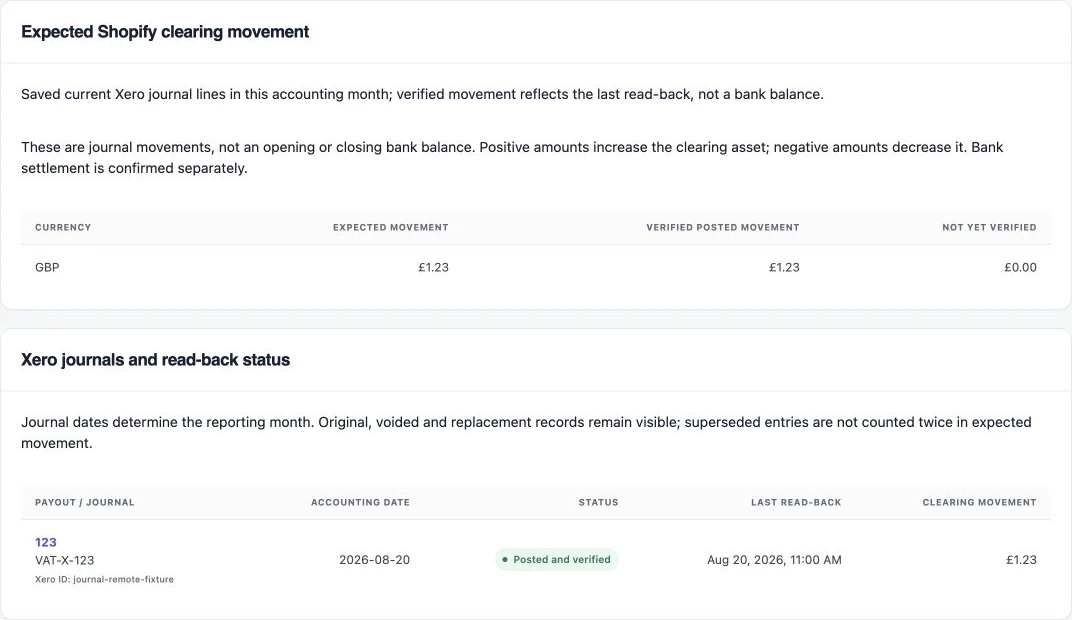
Posted and verified records the result of Vatteo's journal verification. It does not establish that the deposit arrived or that its bank statement line has been reconciled. The next step proves that cash movement.
Worked example: reconcile a US$1,335 Shopify payout
Suppose a payout contains US$1,500 of sales, US$120 of refunds and US$45 of payment fees. Shopify sends US$1,335 to the bank. This example contains no tax, currency conversion or other adjustments, so we can follow one payout through clearing without unrelated differences.
Explain the net deposit
Sales included in the payoutUS$1,500
Refunds included in the payout− US$120
Payment-processing fees− US$45
Net payout to reconcileUS$1,335
The refund belongs in the settlement where Shopify actually includes it. It can relate to an order from an earlier date. Compare the payout's included transactions before assuming that the refund is missing or using an order-date sales total as the expected deposit.
Record the activity once, then clear the receipt
| Xero account | Debit | Credit |
|---|---|---|
| Shopify Payments clearing | US$1,335 | — |
| Refunds and returns | US$120 | — |
| Payment-processing fees | US$45 | — |
| Sales | — | US$1,500 |
| Total | US$1,500 | US$1,500 |
When the money arrives, the bank receipt debits the real bank account US$1,335 and credits Shopify Payments clearing US$1,335. This payout's debit and credit in clearing now offset. The receipt does not create another US$1,335 of sales.
For US stores, preserve any collected sales tax in the approved accounting treatment. For UK stores, use the approved VAT mappings for sales, refunds and fees. This simplified example is not a tax template: a correct cash match alone does not validate a sales-tax or VAT return.
Match the Shopify bank receipt in Xero
- Open the actual bank account's reconciliation screen in Xero and locate the Shopify deposit.
- Compare the amount, currency and destination with the payout detail. Use the payout reference where supported; allow for different payout and bank dates.
- Check whether a Receive Money transaction for this deposit already exists. If it does, match the statement line to that existing receipt.
- If no receipt exists, create one for the net deposit and code it to the same Shopify Payments clearing account used by the journal. Apply the agreed treatment that adds no further tax to this cash movement.
- Confirm the allocation and complete the bank reconciliation. The statement line matches the bank receipt, not the manual journal itself.
- Review the clearing-account transactions to confirm that this payout's journal debit and receipt credit offset.
Before accepting an automatic suggestion or cash-coding a deposit, inspect the account and any existing receipt. A bank rule that categorises every Shopify deposit as sales can make the bank screen look reconciled while duplicating income.
Shopify payouts not matching in Xero? Find the specific difference
Start by locating the break between the three records. A missing bank-feed line, an incorrect receipt and an incomplete payout journal need different corrections. The size of a difference is a clue, not proof of its cause.
| What you see | What to check | What to do |
|---|---|---|
| Sales exceed the deposit | Refunds, fees, tax, adjustments and payment gateways included in the payout | Rebuild the net settlement from that payout's transactions; do not expect gross sales to equal cash. |
| The real bank shows a deposit but Xero does not | Bank-feed status and statement import history | Recover or import only genuinely missing statement activity. Avoid overlapping imports. |
| Shopify shows a deposited payout but the bank does not | Destination account, processing time and available payout reference | Check with the bank using the payout evidence. Do not invent a receipt or manually mark it reconciled. |
| The receipt exists but will not match | Amount, currency, date, bank account and whether it was matched elsewhere | Inspect the existing reconciliation; correct a wrong match before creating any new receipt. |
| Fees or income appear twice | Payout journal, bank rules, manual entries and another integration | Identify which entry duplicated activity. Correct that entry while retaining the genuine payout and receipt. |
| Two Xero receipts represent one real deposit | The accounting transactions and their reconciliation links | Correct the duplicate Receive Money entry. Keep the genuine bank statement line. |
| Two imported statement lines represent one deposit | The actual bank statement and overlapping feed or file imports | Remove only the confirmed duplicate statement line; equal amounts on the same date are not sufficient proof. |
| A payout remains in clearing after receipt | The receipt's account, the payout journal and their references | Correct an allocation to the wrong account, locate a missing entry, or explain a genuine timing item. |
If a valid receipt was matched to the wrong statement line, unreconcile that match and match the correct records. If the accounting transaction itself is wrong, correct the transaction. These are separate problems; deleting the real bank evidence does not repair an incorrect journal.
For an incorrect payout journal posted through Vatteo, use Prepare correction and review the replacement and its linked history. If the posting result is uncertain, use Recover existing Xero request before attempting another entry. Coordinate changes to a closed or filed period with the person responsible for the books.
Explain the clearing balance at month-end
Run Xero's Account Transactions report for the Shopify clearing account. Include the opening balance, payout journal movements and bank receipts for the period. Trace the remaining balance to individual items rather than using an adjustment solely to make the account zero.
Suppose clearing opens at zero, the US$1,335 payout is journaled and received, and another US$760 payout is journaled before month-end but received next month. Clearing closes at US$760: the first payout has cleared and the second remains outstanding.
An explained closing clearing balance
Opening clearing balanceUS$0
First payout journal+ US$1,335
Second payout journal+ US$760
First payout received at the bank− US$1,335
Closing balance: second payout outstandingUS$760
Keep PayPal and other gateways separate from Shopify Payments and reconcile them to their own settlement evidence. A payout spanning accounting periods can also involve multiple journal dates. In Vatteo Reports, journal dates determine the reporting month; the expected movement is not the closing clearing balance from Xero.
Keep the bank check with your Vatteo monthly review
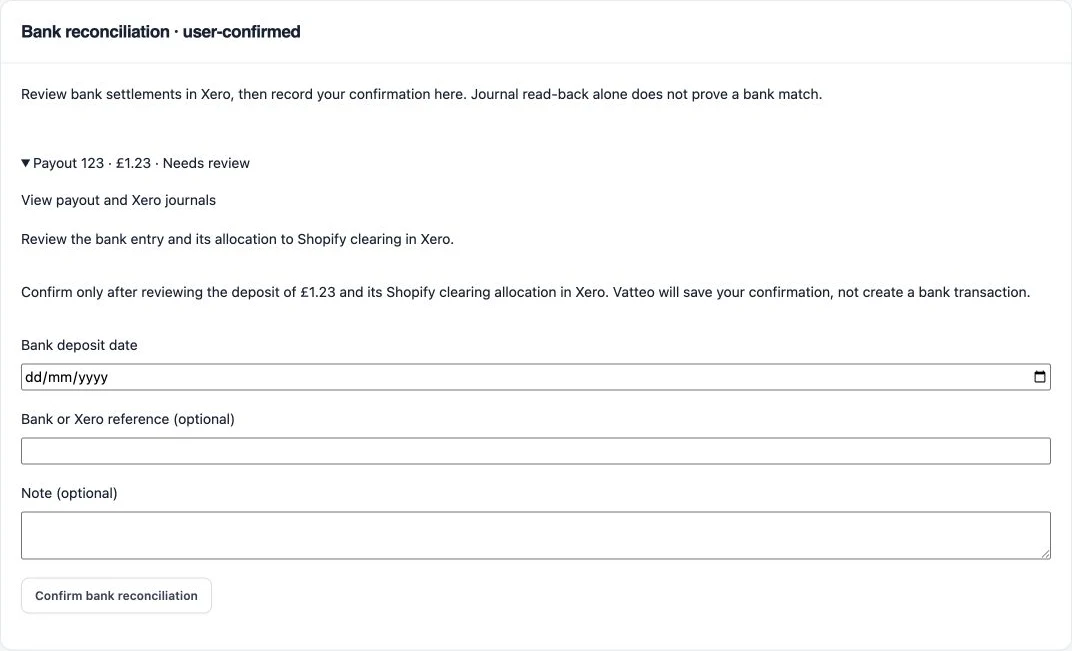
After reviewing the deposit and its clearing allocation in Xero, open Monthly close in Vatteo. Expand the payout under Bank reconciliation, enter the deposit date and, where useful, a bank or Xero reference and note. Choose Confirm bank reconciliation to retain your review alongside the payout's accounting evidence.
This gives the next reviewer a clear distinction between a journal that was posted and a bank settlement you have checked. Vatteo records your confirmation; the bank transaction and its reconciliation remain in Xero.
Once any pending Xero posting or recovery is resolved, finish the monthly review with a saved sign-off snapshot. If review items remain, Vatteo records completion with exceptions so the outstanding work stays visible. If the underlying evidence later changes, the saved review can be identified as needing another look.
Common questions
Shopify Xero reconciliation questions
Why do Shopify sales not match my Xero bank deposits?
Shopify deposits are net settlements. Included refunds, processing fees, adjustments and timing can make them different from a sales total. Start with the specific payout's transactions and compare the same currency and payment gateway before checking its journal and bank receipt.
Should I reconcile a Shopify deposit to sales or clearing in Xero?
In Vatteo's net payout journal workflow, sales, refunds and fees are already recorded by the journal. Allocate the net bank receipt to the same Shopify clearing account. Coding it to sales would duplicate income. Check the existing accounting before applying this treatment to another integration's workflow.
Does Vatteo automatically reconcile my Xero bank feed?
Vatteo reconstructs the payout, prepares and verifies Xero journals, and records your bank-reconciliation confirmation for the monthly review. You check and reconcile the bank receipt in Xero. Vatteo's confirmation does not create a bank transaction or verify the bank feed.
Must my Shopify clearing account be zero every month?
No. A payout recorded before month-end but received later can remain in clearing. Reconcile the opening balance, journal movements and receipts, then identify each outstanding item. An unexplained or stale balance needs investigation rather than a forced zero adjustment.
How do I avoid duplicate Shopify fees in Xero?
Check whether the payout journal already includes the fee. If it does, match the net receipt to clearing without adding that fee again. Also review bank rules, manual entries and other integrations for overlapping accounting. A separate genuine bank charge needs its own evidence.
Sources
Platform behaviour changes. These first-party references were checked on 4 September 2026.
- Shopify: View payout details and transaction exports
- Shopify: Lower or missing payouts
- Xero: Payment-processor receipts and clearing accounts
- Xero: View bank statements and statement lines
- Xero: Find and remove duplicate statement lines
- Xero: Edit or remove a Receive Money transaction
- Xero: View bank reconciliation details
- Xero: Cash coding and existing transactions
- Xero: Compare statement balances and investigate missing activity